App Lock - Applock Fingerprint
- 4.7
- Rating
- 100.00M
- Installs
- Free
- Price
 Analysis by App-foxy
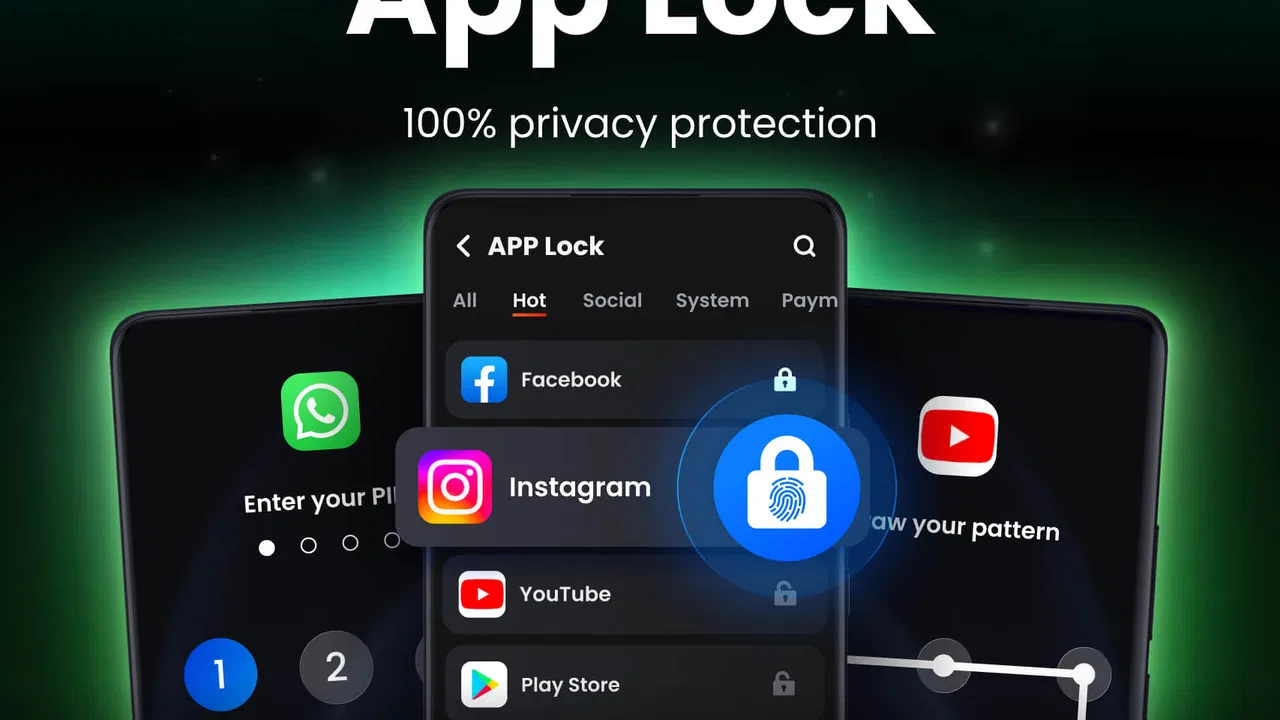
On a shared phone, privacy is rarely about hiding something dramatic. More often, it is about keeping a work account, private messages, saved documents, or personal photos away from an accidental tap. That is where App Lock - Applock Fingerprint makes sense. I tested it as a straightforward productivity and privacy utility, and its main job is easy to understand: place an extra lock in front of selected apps using a fingerprint, password, PIN, or pattern.
The app is free to install, suitable for Everyone, and comes from Trusted Tools. It has built a strong audience, with more than one hundred million installs and an average rating of 4.7 from roughly six hundred fifty-four thousand ratings. Those figures suggest that the basic idea is useful to a wide range of Android users, but popularity does not remove the need to think carefully about how an app lock fits into a shared-device routine.
How it works when several people use one phone
The most convincing household use case is a phone that regularly changes hands. Imagine a family member asking to borrow the device to check a map, make a call, or watch something. You may be happy to lend the phone without wanting that person to open your email, banking app, cloud storage, private chat, or work tools. Instead of handing over the whole device with no boundary, you can protect only the apps that need a second check.
You May Also Like

 Blood Strike: 2.5 Anniversary
Blood Strike’s Loadouts Turn Every Drop Into a Tactical Gamble
A close look at Blood Strike’s custom loadouts: how fast access to signature weapons reshapes its battle royale rhythm, rewards preparation, and narrows the gap between fights.

 Pandora - Music & Podcasts
Pandora’s Music Is Easy to Start, but Harder to Recover
Pandora’s strength is its low-effort path from a seed to a station. Its weak spot is how much confidence it asks you to place in connection, setup, and quiet recovery.

 8 Ball Pool
 Is Built on Rivalries, Rematches, and Routine
A close look at the rivalries, rematches, shared routines, and unanswered safety questions that turn a quick pool match into a persistent mobile community.

 Samsung Music
’s Quiet Strength Is Playing What You Already Own
Its reach comes less from spectacle than from dependable access to a personal library. That simplicity is both the app’s strongest retention engine and its ceiling.

 AccuWeather: Weather Radar
AccuWeather Review: A Quick, Clear Forecast for Everyday Decisions
For everyday plans, the best forecast is the one you can understand quickly. AccuWeather makes rain timing, radar, and local conditions easy to act on, with a few trade-offs.

 Hill Climb Racing
Why Hill Climb Racing Still Turns Crashes Into One More Run
A tiny car, a bumpy hill and one more upgrade: Hill Climb Racing keeps resurfacing because its simple chaos makes every near-miss feel personal.
More From Our News Desk
View All News


That selective approach is important. Locking every application can turn a simple request into a series of interruptions, especially when the owner is the one using the phone most of the time. I found the app more practical when treated as a small privacy layer rather than a complete replacement for the phone’s main screen lock. The phone lock protects access to the device itself; this tool is better understood as a second boundary around chosen applications.
A shared-device scenario also exposes a useful trade-off. If someone needs a navigation app, calculator, camera, or browser, locking those tools may create unnecessary friction. If the same person needs access to a private messaging app or a business account, leaving it open may be too permissive. The best setup is therefore not the most heavily locked one. It is the one that matches the actual moments when the phone is passed around.
I would especially consider it for a spare household phone, a device used by partners, or a personal phone that children occasionally borrow. It can also help when a colleague needs to use one work device without giving them an open path into unrelated accounts. It does not create separate user profiles, and it should not be treated as a substitute for Android’s own account or device-management tools. Its value comes from adding a focused checkpoint to individual apps.
Start with a small, deliberate boundary
The first setup decision is which applications deserve protection. I recommend beginning with the apps that contain the most sensitive information, rather than selecting everything in sight. A private conversation app, password manager, financial service, photo library, or work mailbox usually has a clearer reason for protection than a weather app or a public video player.
Once the protected list becomes too large, the lock can lose its usefulness. You may find yourself authenticating repeatedly during ordinary tasks, and another person borrowing the phone may feel that every action requires your involvement. A short list also makes it easier to remember what is covered. This is one of the less obvious strengths of a simple app locker: it encourages you to think in terms of boundaries instead of assuming that privacy requires locking the entire device.
App Lock - Applock Fingerprint supports several authentication styles. On a compatible phone, fingerprint access should be the quickest option for the owner. A PIN or pattern can be more convenient when the sensor is unreliable, when the phone is positioned awkwardly, or when another person’s presence makes fingerprint use uncomfortable. A password gives you another choice if you prefer not to rely on a visual pattern.
There is no universally best method. A pattern can be easy to enter but may be visible to someone standing nearby. A short PIN is quick but should not be obvious. A fingerprint is convenient, yet it depends on the phone’s sensor and the way the operating system handles biometric authentication. I would choose the method that remains private and usable in the exact household situation, then keep the phone’s primary screen lock strong as well.
One practical tip is to test the protected apps immediately after setup, both from the owner’s normal routine and from a borrowed-device situation. Open one protected app, lock the phone, switch between applications, and try returning to the protected one. This reveals whether your chosen boundary feels natural before you depend on it. It also prevents a common mistake: assuming that selecting an app automatically means every path to its content will behave exactly as expected.
Shared access needs coordination, not just a password
An app lock works best when the people sharing the phone understand the arrangement. If a partner or child suddenly encounters a lock screen without context, the result may be confusion rather than respectful privacy. A simple explanation—“these apps are personal, but the others are available”—can make the boundary feel reasonable instead of secretive.
That matters even more on a device used for household tasks. You might protect a personal mail account while leaving a shared shopping list accessible. You could lock a work chat but keep the family calendar open. The useful distinction is between private ownership and shared function. The app gives you the technical checkpoint, but you still decide which digital spaces belong to everyone and which belong to one person.
I would avoid using the same authentication detail for every person who needs access. If the purpose is to keep accounts separate, casually revealing the PIN defeats that purpose. In a household, it is better to agree on which apps can be used freely and which require the owner to unlock them. That arrangement is less convenient than unrestricted access, but it is clearer and safer.
There is also a coordination issue when the owner is unavailable. If a locked app contains information that another person genuinely needs in an urgent situation, the extra barrier can slow things down. For that reason, I would not lock an application that the household relies on for immediate communication or essential access unless everyone has a separate plan. The tool protects privacy, but privacy and availability sometimes pull in opposite directions.
Another useful workflow is to review the protected list after a week. Shared-device habits change quickly. An app that seemed private may become a household tool, while a newly installed app may quietly contain sensitive information. This short review is more effective than setting the lock once and forgetting it. It also keeps the number of authentication prompts under control.
Age, trust, and the limits of an app lock
Because the content rating is Everyone, the app itself is presented as suitable for a broad audience. That does not mean it is a parental-control system or a child account manager. I would not use it to pretend that a young user has a separate, supervised environment. It can place a lock on selected apps, but it does not replace conversations about responsible use, device rules, or age-appropriate access.
For older children who occasionally borrow a parent’s phone, the app can create a modest and understandable boundary. You can leave educational tools, calls, or shared entertainment available while protecting private conversations and adult accounts. For younger children, however, the main screen lock, a supervised profile where available, and direct supervision may be more suitable. An app-level barrier alone does not explain why an app is restricted or manage what happens elsewhere on the device.
Trust is another important factor. If you use the tool to hide every part of the phone from a partner or family member, the technical setup may intensify an existing disagreement rather than solve it. I see it as a privacy aid, not a relationship tool. It is appropriate when people already agree that some accounts are personal. It is less appropriate when the real problem is uncertainty about who should have access to a shared device.
There is a difference between privacy and secrecy in everyday use. Protecting a work mailbox because it contains confidential material is a sensible boundary. Locking a shared household account that everyone needs may create needless conflict. Thinking through ownership before enabling the lock makes the app more useful and reduces the chance that someone will be locked out of something they reasonably expect to access.
For a child using their own Android phone, I would compare this utility with the phone’s built-in family and account options before choosing it. Those tools are designed around supervision and separate access. App Lock - Applock Fingerprint is narrower: it focuses on putting an authentication step in front of apps. That narrow focus is a benefit for adults who want quick privacy, but a limitation for families seeking detailed oversight.
What the everyday experience gets right
The central interaction is refreshingly direct. Instead of asking you to reorganize the entire phone, the app focuses on app-level protection. Fingerprint, password, PIN, and pattern choices cover the common ways people prefer to authenticate, so you are not forced into one method. In my experience, that flexibility is more valuable than a long list of decorative options.
The app is also approachable for someone who does not want to learn a complicated privacy suite. A person can think, “I need to protect this one app when I lend out my phone,” and understand the purpose immediately. That makes it a reasonable recommendation for relatives who are comfortable with Android but do not want a technical security project.
Its current version is 1.6.5, and it supports Android starting with version 6.0. That broad system support makes it relevant to people keeping an older phone in service, including a household spare. Still, older Android devices can behave differently from newer ones, particularly around biometric handling and background behavior. I would test the lock on the actual phone before building a shared routine around it.
The free price is another reason to try it without much commitment, although optional in-app purchases range from around four dollars to about thirty-one dollars per item. I would not assume that paying is necessary for the basic idea to be useful. First decide whether the app-level lock fits your routine; only then consider whether any optional purchase addresses a need you actually have.
One non-obvious advantage is psychological rather than technical: a visible second checkpoint can make people pause before opening an account that is not theirs. On a shared phone, that pause is useful even when nobody is actively trying to snoop. It reduces accidental access when someone is switching between recent apps or tapping a notification.
At the same time, I would not call it a complete security solution. A determined person with physical control of the device may look for other routes, change device settings, or access information that appears in notifications and previews outside the protected app. The best results come from combining this app with a strong device lock, careful notification settings, and sensible account separation.
Where alternatives may be a better fit
Android’s built-in screen lock is still the first protection I would recommend. It covers the whole device and avoids adding another layer to every selected app. If nobody else uses the phone, or if the phone contains only low-risk information, the system lock may be enough. Adding an app lock in that situation can create inconvenience without solving a real problem.
Separate Android user profiles are a better option when several people need regular, independent environments. A profile can provide a cleaner division of accounts and settings than repeatedly unlocking individual apps. The drawback is that profile switching may feel too slow for a quick handoff, and not every phone or household situation makes it practical. App Lock - Applock Fingerprint is more suitable for occasional borrowing where only a few apps need protection.
Dedicated parental-control tools are preferable when the goal is screen-time scheduling, content filtering, app approval, or activity supervision. This app should not be judged as though it offers those systems. Its strength is a focused access barrier, not a complete family-management dashboard.
Some phones also include a manufacturer-provided secure space or private folder. When that option is available and well integrated, it may offer a smoother experience because it is designed alongside the device software. I would choose that route for a full private workspace. I would choose this app when I want a simpler, app-by-app boundary without moving content into a separate area.
The trade-off is therefore clear. This utility is lighter and easier to understand than a full privacy suite, but it is also less comprehensive. It can be the right answer for a shared phone used casually. It is not the right answer for enterprise device management, serious compartmentalization, or a child-safety program.
My household verdict
After using it with a shared-device mindset, I see App Lock - Applock Fingerprint as a practical privacy layer for everyday Android use. Its strongest scenario is a personal phone that is occasionally handed to another person, especially when you want to protect only a handful of accounts. Fingerprint access can make the interruption brief, while PIN, pattern, and password options give you alternatives when biometrics are inconvenient.
I would recommend starting with a short list, explaining the boundary to regular borrowers, and checking that notifications do not reveal more than you intended. I would also keep the phone’s main lock enabled and avoid protecting apps that another household member needs during an urgent situation. Those small decisions matter as much as installing the app.
Trusted Tools has made a focused productivity utility rather than an all-purpose family-control package. That focus is both its appeal and its limit. The app is free, rated for Everyone, and widely used, but its usefulness depends on choosing the right apps and setting realistic expectations about what an app-level lock can protect.
My recommendation is simple: use it when you need a quick, selective boundary on a shared Android phone. Skip it if you need separate user accounts, detailed child supervision, or protection that extends beyond individual apps. For the common household situation where someone wants to borrow your phone without opening your private digital life, it offers a sensible extra checkpoint without forcing you to redesign the whole device.
FAQs for App Lock - Applock Fingerprint
01What is App Lock - Applock Fingerprint, and how does it work?
App Lock - Applock Fingerprint is a security application designed to protect your privacy by locking apps on your device. It uses fingerprint recognition, password, or pattern lock to prevent unauthorized access. Once installed, you can select which apps you want to secure, ensuring that your personal data remains safe.
02Is App Lock - Applock Fingerprint compatible with all devices?
App Lock - Applock Fingerprint is compatible with most Android and iOS devices that have fingerprint sensors. However, functionality might vary depending on the device model and operating system version. It’s advisable to check the app's compatibility on the app store page before downloading.
03Can App Lock - Applock Fingerprint protect my photos and videos?
Yes, App Lock - Applock Fingerprint can secure your photos and videos by locking the gallery app or any other media apps on your device. This ensures that only you or authorized users can view your personal media files, adding an extra layer of privacy to your sensitive content.
04What happens if I forget my App Lock password?
If you forget your App Lock password, the app provides a password recovery option. You can reset your password using your registered email address. Make sure to set up recovery options during installation to ensure a smooth recovery process in case you forget your credentials.
05Does App Lock - Applock Fingerprint affect device performance?
App Lock - Applock Fingerprint is designed to be lightweight and efficient, minimizing its impact on device performance. It runs in the background but consumes minimal resources. However, performance may vary slightly depending on the device’s specifications and the number of apps being protected.
Pros
- Highly secure fingerprint lock feature.
- Customizable lock screen themes.
- Supports multiple languages.
- Low battery consumption.
- Easy to set up and use.
Cons
- Some ads can be intrusive.
- Limited features in free version.
- Inconsistent updates from developer.
- May not support all devices.
- Fingerprint sensor can be slow.

App Lock - Applock Fingerprint
Gallery